

In la-la land, all scrolling is simple and can be achieved with LazyColumn or a scrolling Column. In our world, however, in the bid to maximise the limited screen real estate of mobile devices and create an immersive experience for users, Product Designers dream up lofty scrolling behaviours. And these dreams could have been your nightmare as an Android Engineer before Jetpack Compose, during the dark ages of Android Development. Thankfully, Compose has ushered in the renaissance, a rebirth of the UI development paradigm on Android. This reformation reduced boilerplate and introduced simplified, unified ways to develop complex UX, like the topic of this post: custom nested scrolling.
We'll be going on a journey to implement two seemingly complex nested scrolling behaviours. We'll begin with a theoretical explanation of nested scrolling, followed by a code-along. Just like a lad learning to ride a bicycle, the goal of this article is to give you the push, with the hope that you can go mountain biking in the future.
What is Nested Scrolling?
Typically, to scroll a Row or Column, you pass a horizontalScroll() or verticalScroll() modifier. And if you have a large data set, you use the lazy variants of these composables. This suffices for most use cases. But when you need to mutate the state (e.g size, colour, position) of a composable in response to scroll gestures, this is where nested scrolling comes in. A good example is the classic parallax effect, where an image positioned above a list appears to scroll more slowly than the list.
Cycle of Nested Scrolling
In traditional Chinese restaurants, tables for group diners usually have a lazy Susan, a large rotating tray of assorted dishes. Each diner serves themselves from whichever dish is in front of them. Then they rotate the tray, passing the dish to the next person while they get a new dish in front of them. The next person can only serve what's left from the prior person's serving. This is analogous to the cycle of nested scrolling, where instead of dishes, scroll deltas and velocities are passed between the originating composable and cycle events, and only the leftover delta and velocity can be consumed by the parent composable in the nested scroll chain.
Continuing on the parallax effect, for simplicity, imagine this is our widget tree:
Box {
  Image()
  LazyColumn()
}
To achieve parallax, when the column receives scroll gestures, the image and the column should slide up (i.e., mutate the vertical offset of both), but the image's slower. If it's a down scroll (finger sliding up), the content of the column only starts to scroll when the image is completely slid up (i.e when imgHeight <= abs(imgOffset)). Like so:
An example of a parallax scroll effect.
A considerable level of communication is needed to pull this off: the image has to know when the column receives scroll gestures (with the associated delta), and the column needs to know when imgHeight <= abs(imgOffset). This is where the nestedScroll() modifier comes in; unlike its verticalScroll() and horizontalScroll() counterparts, it receives a NestedScrollConnection, and you pass it to a common ancestor: the Box in our example.
val connection = object : NestedScrollConnection {

    override fun onPreScroll(available: Offset, source: NestedScrollSource): Offset {}

    override fun onPostScroll(consumed: Offset, available: Offset, source: NestedScrollSource): Offset {}

    override suspend fun onPreFling(available: Velocity): Velocity {}

    override suspend fun onPostFling(consumed: Velocity, available: Velocity): Velocity {}
}

Box(modifier = Modifier.nestedScroll(connection)) {
    Image()
    LazyColumn()
}
Cycle events of NestedScrollConnection.
When the column receives scroll gestures, it bubbles the delta (say 5px) up the widget tree to the parent with NestedScrollConnection, and this triggers the passing and consumption of deltas and velocities, as in the earlier restaurant analogy.
- onPreScroll: receives the 5px delta as the
availableparameter, which can then be used to drive state changes, like sliding the image up in the parallax example. The value returned from here is passed down to the original receiver of the gesture—the column—which then uses it to determine how much to scroll its contents. Returning zero means no offset was consumed, and the column will scroll by the original 5px. Returning 5 means all the delta was consumed, the column will receive 0px and can't scroll. - onPostScroll: is called after the column has hit the scroll boundary or finishes scrolling by the offset returned by
onPreScroll(), whichever comes first. While theconsumedparameter is how many px the column scrolled, theavailableis the leftover delta after the column has scrolled. If the column has not hit its scroll bounds,availablewill be zero, because all the delta was consumed - onPreFling: same as
onPreScroll()except it's called for fling gestures andvelocityis the currency. - onPostFling: always called at the end of all cycle events, when the user lifts their finger. And properties are similar to those of
onPostScroll(), except that they're velocity, not offset.
Let's look at two scrolling scenarios:
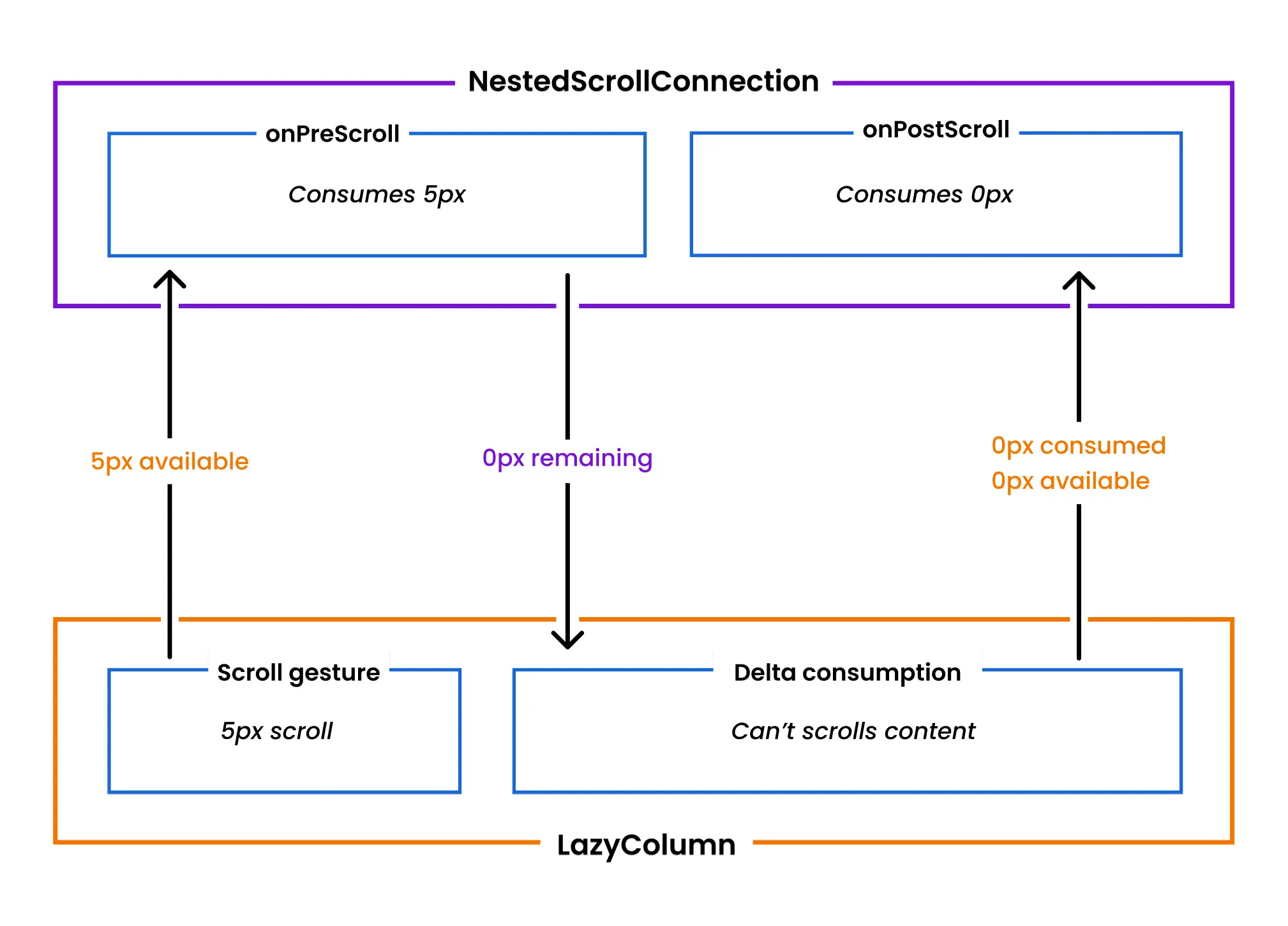
LazyColumn receives a scroll gesture, the delta is propagated to the nested scroll connection, which consumes all of it in onPreScroll(). Consequently, the column can't scroll its content because there's no more delta to consume. Finally, onPostScroll() receives zero consumed because the LazyColumn didn't scroll, and zero available because there's still no remaining delta.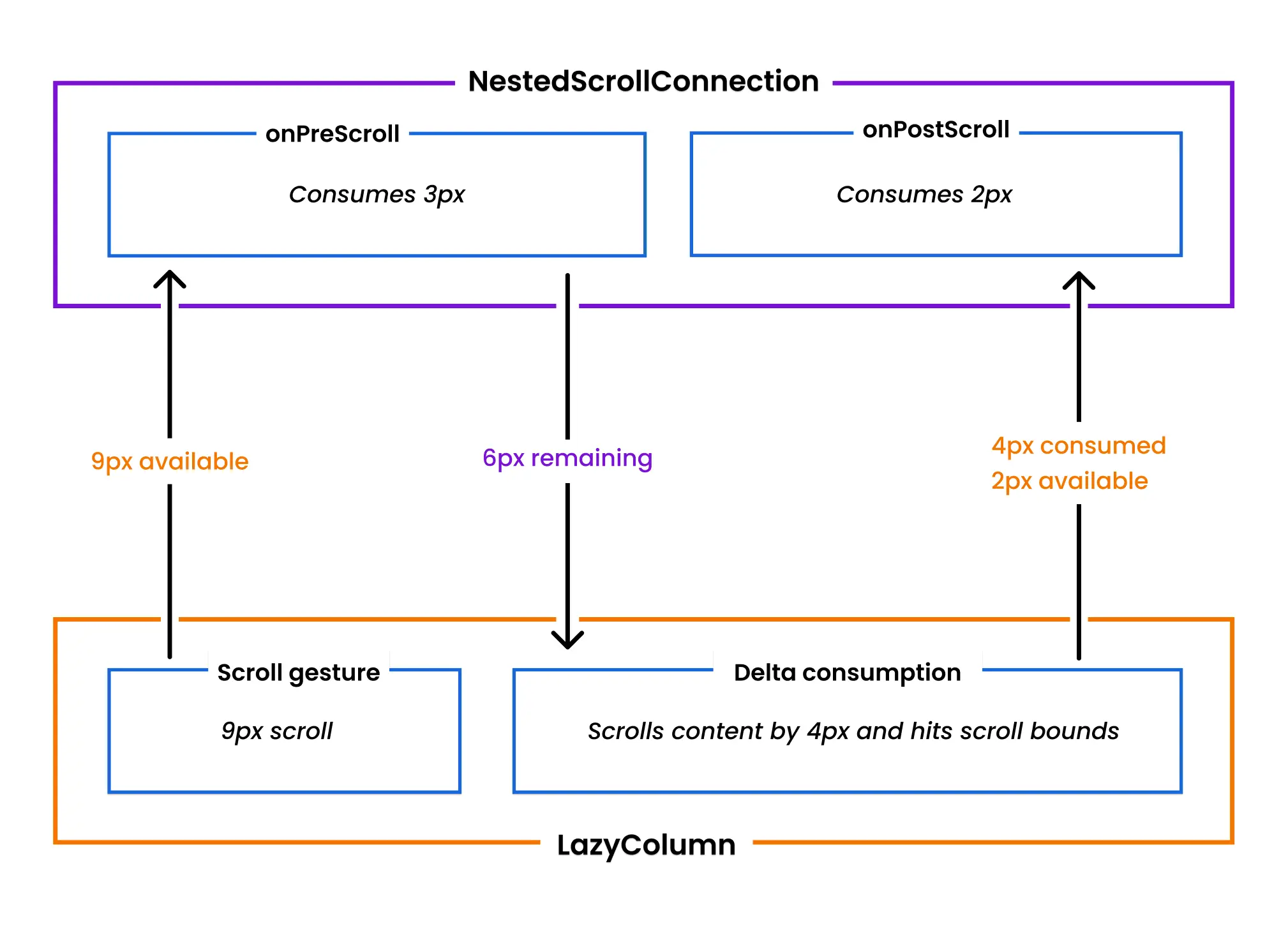
available received in onPreScroll(), 3px is consumed, and the remaining 6px is passed to the LazyColumn, which scrolls by 4px and hits its scroll bounds. This 4px and the 2px left from the original delta are passed to onPostScroll() as consumed and available, respectivelyProject setup
The theory out of the way, subsequent sections are code-along. So clone the repo and checkout the starter branch, this is where you'll be working from. Afterwards, open the project in Android Studio Otter or later, and run it.
Implementing Parallax Scroll Effect
The completed parallax scroll of the team details screen: our goal for this section. When scrolling down, the Hero (top orange section) and TeamData section (below the hero) slide up until the former is completely hidden; only then will the latter actually start scrolling its content. Conversely, when scrolling up, the TeamData scrolls back to the top first. Only then do both the TeamData and the Hero slide down together.
With the app running, tap the Teams tab, then the McLaren team, and you should see something similar to the screen above, minus the scroll effect, of course.
Now, in Android Studio, the first order of business is to open TeamDetailsScreen.kt file in the team > presentation package.
Start by importing these lerp functions:
import androidx.compose.ui.text.lerp
import androidx.compose.ui.unit.lerp
import androidx.compose.ui.util.lerp
Lerp functions are linear interpolators. They'll be invaluable to the scrolling effects used throughout this article.
At the bottom of the file, above the constants, declare a container with the properties we'll need to implement the parallax scroll:
private data class ScrollData(
    val heroHeight: Int = 0, // 1
    val heroOffset: Float = 0F, // 2
    val contentOverlap: Float, // 3
) {
    val progress get() = (abs(heroOffset) / heroHeight).coerceIn(0F, 1F).takeIf { !it.isNaN() } ?: 0F // 4
    val contentYOffset get() = lerp(heroHeight - contentOverlap, 0F, progress).toInt() // 5
}
Data class for the properties needed to implement the parallax scroll.
- The height of the
Hero. It'll be used to determine the bounds ofheroOffset. - The y-offset of the
Hero, mutated with scroll delta. - How much does the
TeamDataoverlap theHero? That is, the section below the top border radius of theTeamData. - Where are we in the animation? How much of the
Herohas been slid off/in? - Using the
progressabove, how much should we offset theTeamDataon the y-axis?
Next, inside the TeamDetailsScreen(), declare the density, and scroll data and connection under uiState variable like so:
val density = LocalDensity.current
var scrollData by remember { mutableStateOf(ScrollData(contentOverlap = with(density) { 30.dp.toPx() })) }
val scrollConnection = remember {
    object : NestedScrollConnection {

    }
}
Yes, we're leaving NestedScrollConnection empty for now. Remember to import the necessary packages.
Now, update the parameters of TeamContent(), change the container to a Box, and consume the offset:
@Composable
private fun TeamContent(
    —start—year: String,
    team: TeamDetails,
    modifier: Modifier,
    scrollState: ScrollState,—end—
    scrollData: ScrollData,
    onHeroPlaced: (height: Int) -> Unit,
) {
    Box(modifier = modifier) {
        Hero(
            team = team,
            modifier = —start—Modifier
                .fillMaxWidth()
                .aspectRatio(HERO_ASPECT_RATIO)
                .background(team.color)—end—
                .onPlaced { onHeroPlaced(it.size.height) }
                .offset { IntOffset(x = 0, y = (scrollData.heroOffset * HERO_PARALLAX_SCALE_FACTOR).toInt()) }
        )
        TeamData(
            —start—team = team,
            year = year,
            scrollState = scrollState,—end—
            modifier = Modifier
                —start—.fillMaxSize()—end—
                .offset { IntOffset(x = 0, y = scrollData.contentYOffset) }
        )
    }
}
We switched the parent to a Box so we can manage the positioning manually using offset modifiers. Additionally, the caller of TeamContent is notified of the Hero's height, while the y-offset of both the Hero and TeamData are synced to the scroll progress. Worthy of note is the intentional slowing of the Hero's offset for the parallax effect.
Afterwards, supply these arguments at the call sight of TeamContent, and add the nestedScroll modifier:
else -> TeamContent(
    —start—team = team,
    year = uiState.year,—end—
    modifier = Modifier
        —start—.fillMaxSize()—end—
        .nestedScroll(scrollConnection),
    scrollData = scrollData,
    onHeroPlaced = {
        scrollData = scrollData.copy(heroHeight = it)
    },
)
Rerun, and you’ll notice that visually and functionally, much didn't change, and the parallax effect is not being applied, even though we’re passing the offset correctly. The issue is that we're not consuming the scroll delta yet.
Consuming down scrolls
So, back to the scrollConnection, override onPreScroll inside the anonymous object, like so:
override fun onPreScroll(available: Offset, source: NestedScrollSource): Offset {
    val delta = available.y // 1
    if (delta >= 0F) return Offset.Zero // 2

    val newOffset = max(-scrollData.heroHeight.toFloat(), scrollData.heroOffset + delta) // 3
    val consumed = newOffset - scrollData.heroOffset // 4
    scrollData = scrollData.copy(heroOffset = newOffset)
    return Offset(0f, consumed) // 5
}
On down scroll, we're preventing the TeamData from scrolling until the Hero is completely hidden.
- We only need the y property for vertical scrolls.
- Only consume negative delta (down scrolls). We have a different behaviour for up scrolls, more on that later.
- Consume the delta, but it shouldn't exceed the
Hero's height. This stops theHerofrom needlessly continuing to slide off once fully hidden. - How much offset did we consume?
- Return the consumed offset so the framework can propagate the unused delta to scroll the
TeamData.
Rerun, and you'll notice that the parallax now works for down scrolls.
Consuming up scrolls
The next tasks are to fix the overlapping team name and reverse the scroll effect during up scroll.
For the former, we need to sync the size and y-offset of the team name and logo with the scroll progress.
First, add the progress parameter to the Toolbar:
@Composable
private fun Toolbar(
    —start—team: TeamDetails?,
    onBack: () -> Unit,—end—
    progress: Float
)
Then supply the argument at the call-site:
Toolbar(
    —start—onBack = onBack,
    team = uiState.team,—end—
    progress = scrollData.progress
)
Subsequently, update the Row in the Toolbar composable like so:
Row(
    —start—verticalAlignment = Alignment.CenterVertically,
    horizontalArrangement = Arrangement.spacedBy(4.dp),—end—
    modifier = Modifier
        —start—.align(Alignment.BottomStart)—end—
        .padding(horizontal = lerp(16.dp, kToolbarTitleStartSpacing, progress))
        .graphicsLayer {
            translationY = lerp(
                size.height * TOOLBAR_TITLE_EXPANDED_Y_FACTOR,
                -size.height * TOOLBAR_TITLE_COLLAPSED_Y_FACTOR,
                progress
            )
        }
) {
    Text(
        —start—text = team?.name.orEmpty(),
        color = MaterialTheme.colorScheme.onPrimaryContainer,—end—
        style = lerp(
            MaterialTheme.typography.displayLargeEmphasized,
            MaterialTheme.typography.titleLarge,
            progress
        ),
    )
    team?.logo?.let { logo ->
        Image(
            —start—contentDescription = null,—end—
            painter = painterResource(logo),
            modifier = Modifier.size(lerp(64.dp, 24.dp, progress))
        )
    }
}
For the Row containing the team name and logo, we sync its y-offset and padding to the scroll progress. The same applies to the team name text style, and logo size. We do this by defining start and end values, then using lerp to interpolate between them as the scroll progresses.
To implement the inversion of the parallax when scrolling up, we override onPostScroll(). Remember, it's called after TeamData has scrolled by the delta returned from onPreScroll().
override fun onPostScroll(consumed: Offset, available: Offset, source: NestedScrollSource): Offset {
    val delta = available.y
    if (delta <= 0F) return Offset.Zero // 1

    // 2
    val newOffset = min(0F, scrollData.heroOffset + delta)
    val consumed = newOffset - scrollData.heroOffset
    scrollData = scrollData.copy(heroOffset = newOffset)
    return Offset(0f, consumed)
}- Ignoring the event if it's a down scroll (negative delta) or if the
TeamDatahas not scrolled to the top (zero delta). - Similiar to
onPreScroll(): consuming the delta but capping it at the initial starting value, zero.
Rerun and the parallax effect should be applied in both vertical scroll directions.
Two final details: we need to implement the illusion of the car whizzing from left to right. And after Hero is fully collapsed, we want the top border radius of TeamData to be zero, because it looks weird.
As we did for the Toolbar() earlier, update the declaration of TeamData() to receive progress and supply the argument at the call-site. Then update the cornerRadius variable inside of it:
val cornerRadius = lerp(28.dp, 0.dp, progress)For the illusion of speed, we'll reverse and scale the scroll progress. Hence, inside Hero(), update translationX in the graphicsLayer modifier passed to the second image like so:
translationX = (-extraX * HERO_CAR_HORIZONTAL_SHIFT) * (1 - (progress * HERO_CAR_HORIZONTAL_PROGRESS_SCALE))Rerun, and you should see the car whizz from left to right as you scroll down, and vice versa.
Can you try scrolling the screen by swiping up on the Hero? What happened? Nothing, right? We need to make it accept scroll gestures.
In the call site of Hero, append this to the modifier argument passed to it:
.verticalScroll(rememberScrollState())Yes, that's all. The scroll delta will be seamlessly forwarded to the nested scroll connection.
Consuming fling velocities
If you place your finger on the Hero and fling upward, you’ll notice the scroll stops once the Hero fully collapses, regardless of fling velocity. This is incorrect behaviour: the TeamData should continue scrolling after the Hero collapses, provided the fling is fast enough.
The solution is to scroll TeamData using the leftover velocity after the Hero fully collapses. We implement this in onPostFling(), which is invoked with the remaining (available) velocity after the fling target (the Hero) has consumed as much as it can.
Recall that, unlike scroll events, fling events deal in velocities rather than deltas. We therefore need to convert velocity into deltas to scroll TeamData. This is where a decay animation comes in: we feed it the available velocity, and it gradually brings the motion to rest while emitting deltas we can use to scroll TeamData.
So add this to TeamDetailsScreen(), just above the scrollConnection:
val decay = rememberSplineBasedDecay<Float>()Android's default fling decay used by LazyColumn and other scrolling containers.
Then override onPostFling() like so:
override suspend fun onPostFling(consumed: Velocity, available: Velocity): Velocity {
    if (available.y < 0F && scrollState.canScrollForward && scrollData.progress >= 1F) { // 1
        var velocity = available.y
        scrollState.scroll(MutatePriority.UserInput) { // 2
            var lastDelta = 0F
            AnimationState(
                initialValue = 0F,
                initialVelocity = velocity
            ).animateDecay(decay) {
                val delta = this.value - lastDelta
                val consumed = -scrollBy(-delta) // 3
                lastDelta = this.value
                velocity = this.velocity
                if (abs(delta - consumed) > 0.5F) cancelAnimation() // We've reached the end of the column
            }
        }
        return Velocity(0F, available.y - velocity) // 4
    }
    return Velocity.Zero
}
Consuming the available velocity until we reach the end of the TeamData or the velocity peters out, whichever comes first.
- Consume only up flings when
TeamDatacan still scroll down, andHerois fully collapsed. This ensures we don't scrollTeamDatawhenHerois still expanded. - Start a scroll transaction so we can dispatch synthetic scroll deltas over time. Using
MutatePriority.UserInputensures this animation can only be interrupted by direct user interaction, like screen touches or new scroll gestures. - Consume scroll deltas with double negation to bridge coordinate systems:
scrollBy()expects positive values for down scrolls, while our working space uses negative values for down scrolls. - Return the consumed velocity, so unused velocity can be propagated up the scroll chain.
Run again and try flinging; now the TeamData should scroll after the Hero has been fully collapsed.
That's all for this section! Congrats on coming this far, you're doing such an amazing job already!
Implementing Nested Scrolling on the Home Screen
The next custom scroll effect will be more logically involved than the parallax's, but we'll take it in smaller bites to make it easier to assimilate.
First, here's our goal for this section:
On the Schedule tab, the bottom bar slides off and on, while the filter row sticks to the top of the screen. Similar behaviour can be noticed on the Teams tab, without the sticky filter. The complexity here lies in the sticky filter's position.
Scrolling the Bottom Bar
Starting with the bottom bar, as with the parallax effect earlier, we'll need a data container for the scroll state's properties. So open HomeScreen.kt (in the home > presentation package) and declare this data class:
private data class ScrollData(
    val bottomBarHeight: Int = 0,
    val bottomBarOffset: Float = 0F
)
Then add scroll state and connection below pageState in HomeScreen().
var scrollData by remember { mutableStateOf(ScrollData()) }
val scrollConnection = remember {
    object : NestedScrollConnection {

    }
}
Next, pass the connection to the content of the Scaffold:
Column(
    modifier = Modifier
        —start—.fillMaxSize()
        .padding(top = innerPadding.calculateTopPadding())—end—
        .nestedScroll(scrollConnection)
)
In the bottomBar property of the Scaffold, mutate and consume the scrollData, just like we did in the prior session:
BottomBar(—start—
    tabs = uiState.tabs,
    current = uiState.tabs[pageState.currentPage],
    onTabClick = { scope.launch { pageState.animateScrollToPage(it.ordinal) } },—end—
    modifier = Modifier
        .onPlaced { scrollData = scrollData.copy(bottomBarHeight = it.size.height) }
        .offset { IntOffset(0, -scrollData.bottomBarOffset.toInt()) }
)
Afterwards, override onPreScroll(), consume the delta and update the offset of the bottom bar accordingly:
override fun onPreScroll(available: Offset, source: NestedScrollSource): Offset {
    val delta = available.y
    val newBottomBarOffset = (scrollData.bottomBarOffset + delta)
        .coerceIn(-scrollData.bottomBarHeight.toFloat(), 0F) //1
    scrollData = scrollData.copy(bottomBarOffset = newBottomBarOffset)
    return Offset.Zero // 2
}- Consuming the offset while keeping the result within the bounds of the default value (zero) and the height of the bottom bar.
- In contrast to the teams screen, returning zero for now because we still want the content to scroll even while sliding the bottom bar.
Rerrun and scroll the race cards; the bottom bar should slide in and out.
That was super easy, right?
Now, there’s a teeny tiny issue. If you scroll a little, the bottom bar just hangs there, stuck in a state of existential uncertainty between sliding in or out. This isn't good for UX. When the scroll gesture stops (on finger lift), we want the bottom bar to complete its sliding journey: in or out, whichever is nearer to the current state.
The framework calls onPostFling() as the last cycle event, when the user lifts their finger. So we'll hook into this event to implement the snapping.
First, though, we need an Animatable to manage the state of the snap animation.
So declare an animatable below the declaration of scrollData:
val animatable = remember { Animatable(0F) }Next, override onPostFling():
override suspend fun onPostFling(consumed: Velocity, available: Velocity): Velocity {
    val offset = abs(scrollData.bottomBarOffset)
    val height = scrollData.bottomBarHeight.toFloat()

    if (offset > 0F && offset < height) { // 1
        val nearest = if (abs(offset - height) < offset) height else 0f // 2

        // 3
        scope.launch {
            animatable.snapTo(scrollData.bottomBarOffset)
            animatable.animateTo(
                targetValue = -nearest,
                animationSpec = tween(easing = FastOutSlowInEasing),
                block = { scrollData = scrollData.copy(bottomBarOffset = value) }
            )
        }
    }
    return Velocity.Zero // 3
}- Snap only if the bottom bar is partially visible, i.e not fully expanded or collapsed.
- Which is nearer to the current offset, full expansion or collapse?
- Starting from the current offset, animate to complete expansion or collapse.
- Same effect as returning
Offset.ZeroinonPreScroll().
To prevent state conflicts for bottomBarOffset, stop any running animation when we receive a new scroll gesture:
override fun onPreScroll(available: Offset, source: NestedScrollSource): Offset {
    if (source == NestedScrollSource.UserInput && animatable.isRunning) {
        scope.launch { animatable.stop() }
    }
    —start—val delta = available.y
    val newBottomBarOffset = (scrollData.bottomBarOffset + delta)
        .coerceIn(-scrollData.bottomBarHeight.toFloat(), 0F)
    scrollData = scrollData.copy(bottomBarOffset = newBottomBarOffset)
    return Offset.Zero—end—
}
Scrolling the "Watch Live" Banner
Like the bottom bar, we also want the banner to slide vertically as the user scrolls up and down. Unlike the bottom bar, however, on down scrolls, we slide the banner up before allowing the race cards to scroll. Conversely, on up scrolls, we allow the race cards to hit their top scroll bounds before sliding in the banner.
We'll implement this behaviour in both onPreScroll() and onPostScroll(), but first, let's update ScrollData.
private data class ScrollData(
    —start—val bottomBarHeight: Int = 0,
    val bottomBarOffset: Float = 0F,—end—
    val bannerHeight: Int = 0,
    val bannerOffset: Float = 0F,
) {
    private val progress get() = (abs(bannerOffset) / bannerHeight).coerceIn(0F, 1F).takeIf { !it.isNaN() } ?: 0F
    val contentYOffset = lerp(bannerHeight, 0, progress)
}
Like on the team details screen, the progress tells us how far along we're in the animation and contentYOffset is used to offset the race cards container, which is the HorizontalPager in this case.
At this point, in the Scaffold content, we need to switch the Column to a Box, so we can manually manage the positioning of the RaceBanner and HorizontalPager. Additionally, we'll also consume and mutate the scrollData:
Box(—start—
    modifier = Modifier
        .fillMaxSize()
        .padding(top = innerPadding.calculateTopPadding())
        .nestedScroll(scrollConnection)
—end—) {
    RaceBanner(
        —start—nextGp = uiState.nextGp,—end—
        modifier = Modifier
            .onPlaced { scrollData = scrollData.copy(bannerHeight = it.size.height) }
            .offset { IntOffset(0, scrollData.bannerOffset.toInt()) },
    )
    HorizontalPager(
        —start—state = pageState,
        key = { index -> uiState.tabs[index] },—end—
        modifier = Modifier
            .fillMaxWidth()
            .layout { measurable, constraints ->
                val offsetY = scrollData.contentYOffset
                val placeable = measurable.measure(constraints.offset(vertical = -offsetY))
                layout(
                    width = placeable.width,
                    height = placeable.height + offsetY
                ) {
                    placeable.place(x = 0, y = offsetY)
                }
            },
    ) {—start— index ->
        when (val tab = uiState.tabs[index]) {
            HomeTab.Schedule -> ScheduleScreen()
            HomeTab.Teams -> TeamsScreen(onNavigate = onNavigate)
            HomeTab.Watch -> WatchScreen()
        }
    —end—}
}
The only unfamiliar code here is the layout modifier, which ensures that no ghost spacing is left at the bottom during down scrolls.
Now, inside onPreScroll(), we'll replace all the code below newBottomBarOffset with:
override fun onPreScroll(available: Offset, source: NestedScrollSource): Offset {
    —start—val delta = available.y
    val newBottomBarOffset = (scrollData.bottomBarOffset + delta)
        .coerceIn(-scrollData.bottomBarHeight.toFloat(), 0F)—end—
    val newBannerOffset = max(
        -scrollData.bannerHeight.toFloat(),
        scrollData.bannerOffset + min(delta, 0F)
    )

    val consumed = newBannerOffset - scrollData.bannerOffset
    scrollData = scrollData.copy(
        bottomBarOffset = newBottomBarOffset,
        bannerOffset = newBannerOffset
    )
    return Offset(0F, consumed)
}
Since the scroll behaviour of the banner and the race cards is interdependent, we're returning the consumed delta so the framework can facilitate a seamless handover of deltas between the banner and race cards.
Run and give the scroll another spin. When scrolling down, the banner slides up before the race cards start to scroll. However, during up scrolls, the banner doesn't slide down after scrolling to the top of the race cards. Any guess how we're going to fix this?
If you guessed overriding onPostScroll(), you're right! This is because it is called when the race cards finish consuming the delta.
override fun onPostScroll(consumed: Offset, available: Offset, source: NestedScrollSource): Offset {
    val delta = available.y
    if (delta <= 0F) return Offset.Zero
    val newBannerOffset = min(0F, scrollData.bannerOffset + delta)
    val consumed = newBannerOffset - scrollData.bannerOffset
    scrollData = scrollData.copy(bannerOffset = newBannerOffset)
    return Offset(0f, consumed)
}
Scroll in the banner when the race cards hit their top scroll bounds.
Conditional stickiness
On the Teams tab on the home screen, there's so much room for the race cards to scroll, no headers eating up valuable screen real estate. Unfortunately, we can't say the same for the Schedule tab, because the season calendar title and the filter row are stuck to the top.
The scrolling behaviour of the calendar title and the banner above it will be the same. Similarly, the filters will share the same behaviour but only for down scrolls. On up scrolls, the filters will slide in first before the race cards are allowed to scroll. This is very similar to using the stickyHeader {} DSL, except we need stickiness only during up scrolls. The reason being that, UX-wise, the banner, calendar title and filters are non-essential when scrolling down, so we make them disappear for the very important race cards. The filters, however, probably need to be interacted with when scrolling back up.
Now, this complicates things a bit. Given that the Teams tab already works as expected, this behaviour will be specific to the Schedule tab, but we'll make it as scalable as possible anyway. Hence, we need a couple of values to make this work: the current tab, and the current heights of the sticky (filters) and non-sticky (watch live banner and calendar title) sections of each tab header. Therefore, let's add these properties to our ScrollData container.
private data class ScrollData(
    —start—val bottomBarHeight: Int = 0,
    val bottomBarOffset: Float = 0F,
    val bannerHeight: Int = 0,
    val bannerOffset: Float = 0F,—end—
    val currentTab: HomeTab = HomeTab.entries.first(),
    val tabHeaderHeights: Map<HomeTab, Int> = mapOf(),
    val tabStickyHeights: Map<HomeTab, Int> = mapOf(),
)
Next, open the ScheduleScreen.kt file inside the schedule > presentation package. Add two functions to ScheduleScreen():
@Composable
fun ScheduleScreen(
    onHeaderPlaced: (Int) -> Unit,
    onFilterPlaced: (Int) -> Unit,
    —start—vm: ScheduleViewModel = hiltViewModel(),—end—
)
And call them in the inner Column:
Column(
    modifier = Modifier
        —start—.fillMaxWidth()—end—
        .onPlaced { onHeaderPlaced(it.size.height) }
) {
    —start—Text(
        style = MaterialTheme.typography.titleLarge,
        modifier = Modifier
            .padding(horizontal = 16.dp, vertical = 12.dp)
            .padding(bottom = 12.dp),
        text = stringResource(R.string.x_fia_f1_calendar, uiState.year)
    )—end—
    FilterGroup(
        —start—current = uiState.filter,
        filters = uiState.tabFilters,
        onCheckChange = vm::onFilterCheckChanged,—end—
        modifier = Modifier.onPlaced { onFilterPlaced(it.size.height) }
    )
}
Subsequently, supply the arguments in the content of the HorizontalPager in HomeScreen():
when (val tab = uiState.tabs[index]) {
    HomeTab.Schedule -> ScheduleScreen(
        onHeaderPlaced = {
            scrollData =
                scrollData.copy(tabHeaderHeights = scrollData.tabHeaderHeights + (tab to it))
        },
        onFilterPlaced = {
            scrollData =
                scrollData.copy(tabStickyHeights = scrollData.tabStickyHeights + (tab to it))
        }
    )
    —start—
    HomeTab.Teams -> TeamsScreen(onNavigate = onNavigate)
    HomeTab.Watch -> WatchScreen()—end—
}
Lastly, still inside HomeScreen(), at the bottom, add another side effect below the current one:
LaunchedEffect(pageState.currentPage) {
    scrollData = scrollData.copy(currentTab = uiState.tabs[pageState.currentPage])
}
Rerun and scroll again.
You should notice no visual difference. That's because the calculation of newBannerOffset in onPreScroll() needs to factor in the heights of the sticky and non-sticky sections of the header. So, on down scrolls, we slide up the header before scrolling the race cards. For up scrolls, we slide in the filters before scrolling the race cards.
First, replace the body of ScrollData with:
private val tabHeaderHeight get() = tabHeaderHeights.getOrDefault(currentTab, 0) // 1
val totalHeaderHeight get() = bannerHeight + tabHeaderHeight // 2
private val progress get() = (abs(bannerOffset) / totalHeaderHeight).coerceIn(0F, 1F).takeIf { !it.isNaN() } ?: 0F // 3
val contentYOffset = lerp(bannerHeight, -tabHeaderHeight, progress) // 4
val tabStickyHeight get() = tabStickyHeights[currentTab] ?: 0 // 5- The height of the header of the current tab. It's zero on all tabs except the Schedule tab, where it's the height of the calendar title and filter.
- The total height of all elements above the race cards.
- To factor in the whole of the header section, we're switching the
bannerHeighttototalHeaderHeightfor progress calculation. - Similarly, we changed the end bound so the header of each tab can be completely scrolled away.
- The height of the section of the header that is sticky during up scrolls (i.e the filter on Schedule tab)
Next, in onPreScroll(), update newBannerOffset by switching bannerHeight to totalHeaderHeight.
val newBannerOffset = max(
    -scrollData.totalHeaderHeight.toFloat(),
    scrollData.bannerOffset + delta.coerceAtMost(0F)
)
Rerun and give the scroll another spin. Still, the scroll behaviour of the Teams tab didn't change: this is expected. On the Schedule tab, however, you should see that when scrolling down, the whole header slides away before the race cards scroll. But when scrolling back up, the filter doesn't appear immediately as it should.
To fix this, we need to slide in the header just enough to show the filter. Therefore, replace newBannerOffset variable with:
val pinnedLimit = -(scrollData.totalHeaderHeight - scrollData.tabStickyHeight).toFloat() // 1
// 2
val newBannerOffset = (scrollData.bannerOffset + delta).coerceIn(
    minimumValue = -scrollData.totalHeaderHeight.toFloat(),
    maximumValue = if (scrollData.bannerOffset > pinnedLimit) 0f else pinnedLimit
)- The height of the section header above the filter, i.e the non-sticky section.
- Consumes the scroll delta and clamps the result between:
- Min value: fully collapsed header when scrolling down. This stops the header from needlessly continuing to slide off once fully hidden.
- Max value: it’s zero if the section above the filter is visible, and
pinnedLimitotherwise. This produces two effects: first, when scrolling back up, the header never slides down by more than the filter’s height, which pins the filter until its original position is reached; second, after that point, the header never slides below its starting position (zero), effectively ending the up scroll.
Rerun and the filter section should only be sticky during up scrolls.
One more thing...
There are four subtle bugs with our implementation:
- You can't scroll the screen by swiping on the header sections. We fixed a similar issue on the Team details screen. Can you fix it here?
- Scrolling the current tab after switching from a tab that was scrolled down considerably makes the header and race cards jump. Any idea why, and how to fix it?
- Flinging on the header doesn't scroll the race cards. We also fixed a similar issue on the Team details screen. Try fixing it here.
- This is probably pedantic, but overscroll effects (the feedback that tells the user they've reached the bounds of a scrolling container) are only applied to the scrolling columns on both screens. It needs to be applied to the whole of the
Box.
The solution to all bugs can be found in the complete branch of the repo you cloned earlier.
Next Steps
First, congratulations on completing this tutorial. You've taken a giant stride!
In this tutorial, you learned about nested scrolling and how it differs from the default scrolling behaviour offered by Compose. Now you know the cycle of nested scrolling and how each can be hooked into to implement different custom scrolling behaviours. You can learn more about scrolling in Compose in this post by the Android team.
Disclaimer: Formula One, Formula 1, F1 & Grand Prix are trademarks of Formula One Licensing BV. Team names, team logos, and other related trademarks are the property of their respective owners. This article is not affiliated with, endorsed by, or associated with Formula One, Formula 1, or any Formula 1 teams.
Special thanks to Jayshearn for his invaluable feedback and review of this article.
